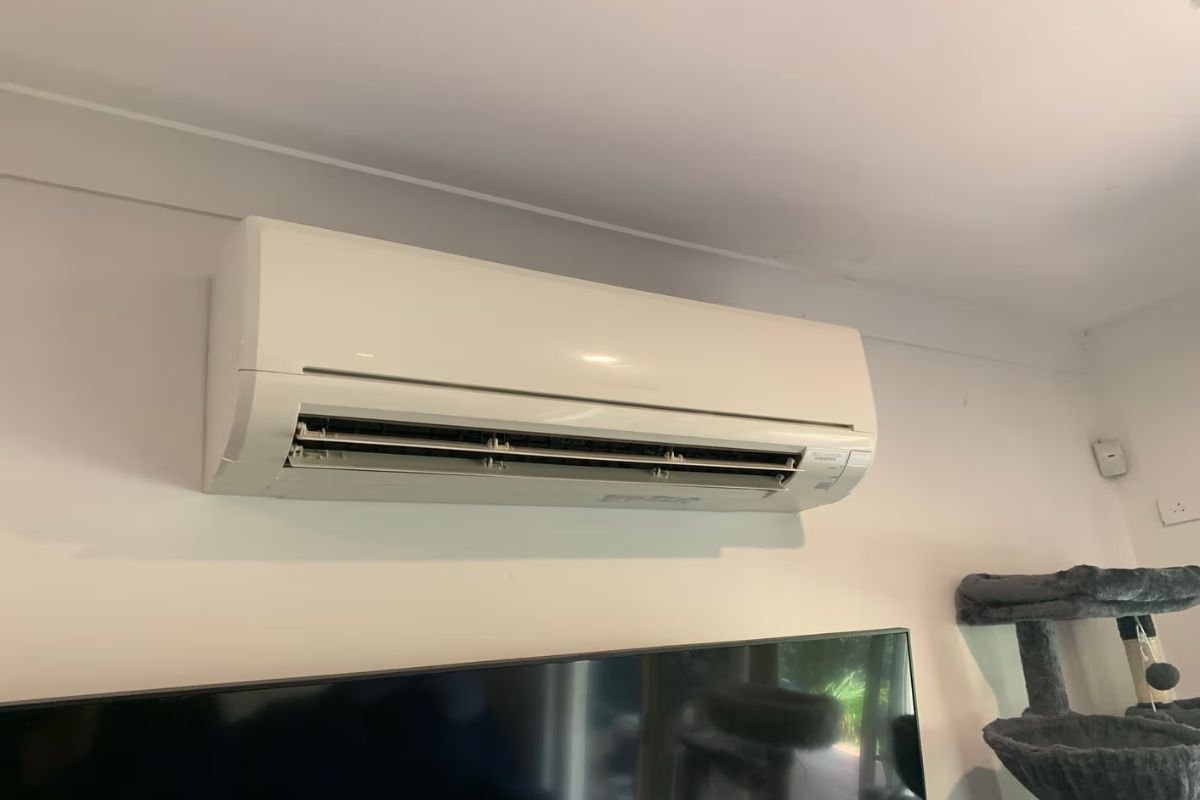
Picture a crisp winter morning on the Gold Coast. It’s still cool outside, you’re not ready to leave the warmth of bed, and instead of dashing to find the remote you simply say, “Hey Google, turn the air conditioning system on to 23 degrees”. By the time you’re up, the house is already warm. If you own a Daikin reverse-cycle air conditioner, that hands-free comfort is closer than you think – and it works just as well for cooling once summer rolls back around. With the right Wi-Fi adapter and a few minutes of setup, you can control your Daikin air conditioner with Google Home using nothing but your voice.
This guide walks you through exactly what you need, how to link your Daikin to Google Home step by step, the voice commands worth memorising, and what to do if something won’t connect. We’ll also cover how to bring an older, non-smart system into the 21st century – including a real air conditioning Gold Coast retrofit we handled ourselves.
Table of contents
- Can you control a Daikin air conditioner with Google Home?
- What you need before you start
- How to connect your Daikin to Google Home (step by step)
- Voice commands you can use
- Retrofitting an older air conditioner for voice control
- Troubleshooting: when Google Home won’t control your Daikin
- Frequently asked questions
- Get voice control set up the right way – Gold Coast & Northern NSW
Can you control a Daikin air conditioner with Google Home?
Yes – as long as your Gold Coast Daikin air conditioning unit has a compatible Wi-Fi module and is set up in the matching Daikin app, you can control it through Google Home and Google Assistant.
Google Home (the app and the Nest speaker range) is the smart-home hub most Australian households already use, so Daikin built official “Works with Google” integrations for it. Once linked, you can turn the system on or off, change the temperature, switch modes and control zones just by talking to any Google Assistant device – a Nest Mini, a Nest Hub, or the Assistant on your phone.
The one catch: Google Home doesn’t talk to the air conditioner directly. It talks to Daikin’s cloud, which talks to your unit through a Wi-Fi adapter. So before you can say a single command, you need the hardware and the app in place. Get those two things right and you’ll be able to control your Daikin air conditioner with Google Home from anywhere in the house.
What you need before you start
Getting voice control working comes down to four things:
1. A compatible Daikin Wi-Fi module. This is the piece most people are missing. Depending on your system, that’s usually one of:
- Daikin Airbase (BRP15B61 Wi-Fi LAN adapter) – common on ducted and multi-head systems in Australia, paired with the Daikin Airbase app.
- Daikin Wi-Fi controller / Residential Controller – used on many wall-mounted split systems, paired with the Daikin Mobile Controller or Residential Controller app.
If you’re not sure which one your system uses (or whether it has one at all), the model number on your indoor unit or a quick call to an installer will confirm it.
2. The matching Daikin app, downloaded and updated on your phone – either Daikin Airbase or Daikin Mobile Controller, depending on the module above.
3. “Out-of-Home” control set up in the Daikin app. This is the cloud login that lets you control the aircon when you’re away from home – and it’s the same account Google Home connects to. Voice control will not work until this is enabled.
4. A Google account and the Google Home app, with your Nest speaker or phone signed in to the same account.
If your air conditioner doesn’t have a Wi-Fi module yet, don’t worry – most Daikin systems can be retrofitted with one. More on that below.
How to connect your Daikin to Google Home (step by step)
These steps follow Daikin Australia’s official process for the Airbase app. The Mobile Controller / Residential Controller flow is nearly identical – you’ll just search for the matching service name in Google Home.
Before you begin, make sure your Daikin app is updated, you’ve installed any firmware update it prompts you for, and your Out-of-Home control is switched on.
- Open the Google Home app on your phone.
- Tap the plus (+) symbol in the top corner.
- Select Set up device.
- Choose Works with Google.
- Tap the search (magnifying glass) icon.
- Search for and select “Daikin Airbase Voice” (or your Daikin app’s voice service, e.g. Daikin Mobile Controller).
- Tap Link to start connecting your account.
- Accept the permissions prompt.
- Enter your Daikin “Out-of-Home” login email and password.
- Select your air conditioning unit by name.
- Tap Done to confirm.
- Work back through the remaining screens using the back/arrow buttons to finish.
That’s it – your Gold Coast Daikin air conditioning system now appears as a device in Google Home. From here on, you can control your Daikin air conditioner with Google Home just by talking to any Nest speaker or your phone. We recommend assigning it to the correct room (e.g. “Living Room”) so commands like “turn off the living room aircon” work naturally.
Voice commands you can use
Once linked, here are the commands that cover 90% of everyday use. Swap in your unit’s name or room as needed:
- Turn it on/off: “Hey Google, turn on the air conditioner.” / “…turn off the aircon.”
- Set a temperature: “Hey Google, set the air conditioner to 24 degrees.”
- Raise or lower: “Hey Google, make it cooler,” or “…increase the temperature by 2 degrees.”
- Change mode: “Hey Google, set the air conditioner to cool” (also heat, fan or dry mode).
- Open a zone (ducted systems): “Hey Google, turn on the bedroom zone.”
- Check status: “Hey Google, what’s the air conditioner set to?”
Command wording can vary slightly by device and Assistant updates, so if one phrasing doesn’t land, try a simpler version (“turn on the aircon” almost always works).
Retrofitting an older air conditioner for voice control
What if your current system is older, or a different brand, and has no smart features at all? You’ve got two paths.
Option 1 – Add a Wi-Fi module to an existing Daikin. Many Daikin units that shipped without smart control can accept an add-on adapter like the Airbase BRP15B61. An installer fits the module, you set up the app, and you’re voice-ready — no need to replace the whole system.
Option 2 – Replace an ageing, non-smart unit. If the system is near end-of-life or a brand without a good app, upgrading to a Google-Home-ready Daikin is often the smarter long-term move.
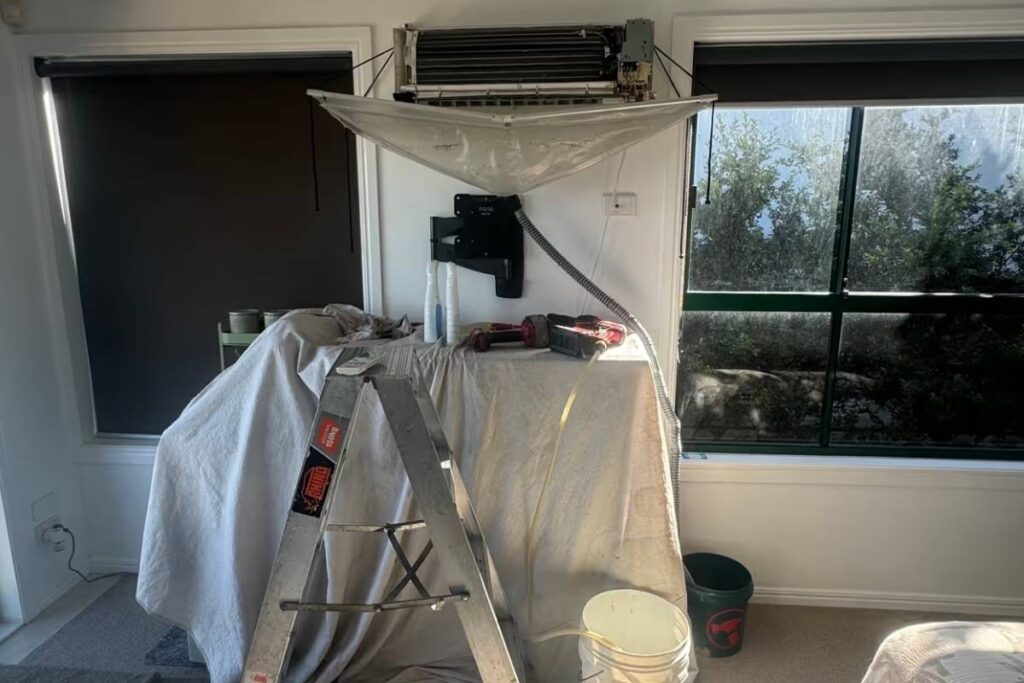
A recent example from our own work on the Gold Coast: a Burleigh Heads client had an old Samsung wall unit that was noisy, expensive to run, and had no app or voice support. We replaced it with a new Daikin split system fitted with a Wi-Fi controller, set up the Airbase “Out-of-Home” account, and linked it to their existing Google Nest speakers. Within the same afternoon they went from a lost remote and manual temperature guessing to “Hey Google, set the bedroom to 23” – plus lower running costs from a far more efficient inverter unit.
The takeaway: you don’t need a whole new house full of smart tech to get voice control. You need the right Daikin hardware set up correctly – and that’s usually a same-day job.
Troubleshooting: when Google Home won’t control your Daikin
Most connection problems come down to a handful of causes. Run through these before assuming anything’s broken:
- Google Home can’t find “Daikin Airbase Voice.” Update the Daikin app first, and confirm you’re searching for the exact service name that matches your app (Airbase vs Mobile Controller).
- Linking fails at login. You must use your Out-of-Home cloud credentials, not a local/home-network-only login. If Out-of-Home isn’t set up in the Daikin app yet, do that first.
- The unit is linked but commands do nothing. Check the air conditioner is powered at the wall and connected to Wi-Fi, and that your phone/speaker are on the same Google account. Re-open the Daikin app to confirm it can control the unit — if the app can’t, Google Home can’t either.
- Commands work intermittently. This is almost always weak Wi-Fi reaching the indoor unit or adapter. A mesh node or moving the router can fix it.
- “Which device?” confusion. Rename the unit and assign it to a room in Google Home so Assistant knows what you mean.
If you’ve worked through these and it still won’t connect, the module may need re-pairing or a firmware reset – something an installer can sort out quickly. Once it’s sorted, you’ll be able to control your Daikin air conditioner with Google Home again in seconds.
Frequently asked questions
Do I need a Nest speaker to control my Daikin with Google Home?
- No. Google Assistant on your phone works too. A Nest Mini or Hub just makes hands-free control easier around the house.
Does controlling my Daikin with Google Home cost anything?
- The integration itself is free. You only pay for the Wi-Fi module (if your unit doesn’t have one) and installation. There’s no subscription to use voice control.
Will Google Home work with my older Daikin air conditioner?
- Often yes – many older Daikin units can be retrofitted with a compatible Wi-Fi adapter. If yours can’t, replacing it with a Wi-Fi-ready Daikin restores full voice control.
Can I also use Amazon Alexa or Apple devices?
- Daikin supports Amazon Alexa through the same app ecosystem. Apple Home/Siri support is more limited and depends on your specific module and app.
Can I control ducted zones by voice?
- Yes. With a compatible ducted system and the Airbase adapter, you can open and close individual zones by voice, e.g. “turn on the bedroom zone.”
Is voice control secure?
- It runs through your password-protected Daikin cloud account and your Google account. Use a strong, unique password on your Daikin “Out-of-Home” login.
Get voice control set up the right way – Gold Coast & Northern NSW
Setting up Google Home control is straightforward when the hardware and app are configured properly – and frustrating when they’re not. If you’d rather skip the guesswork, DEEPCHILL Air Conditioning Gold Coast can supply, install and set up the right Daikin Wi-Fi module, configure your Out-of-Home account, and link it to Google Home so it just works.
We’re a local team based in Burleigh Heads, servicing the Gold Coast, the hinterland and Northern NSW, with 40 years of air conditioning experience behind us.
Ready to control your Daikin air conditioner with Google Home without the setup hassle?
Call us on 07 5526 0199 or request a quote online to book a smart air conditioning setup, upgrade or retrofit.
Say goodbye to the lost remote – and hello to hands-free comfort.